Syntax Highlighting
Gherkin Keywords
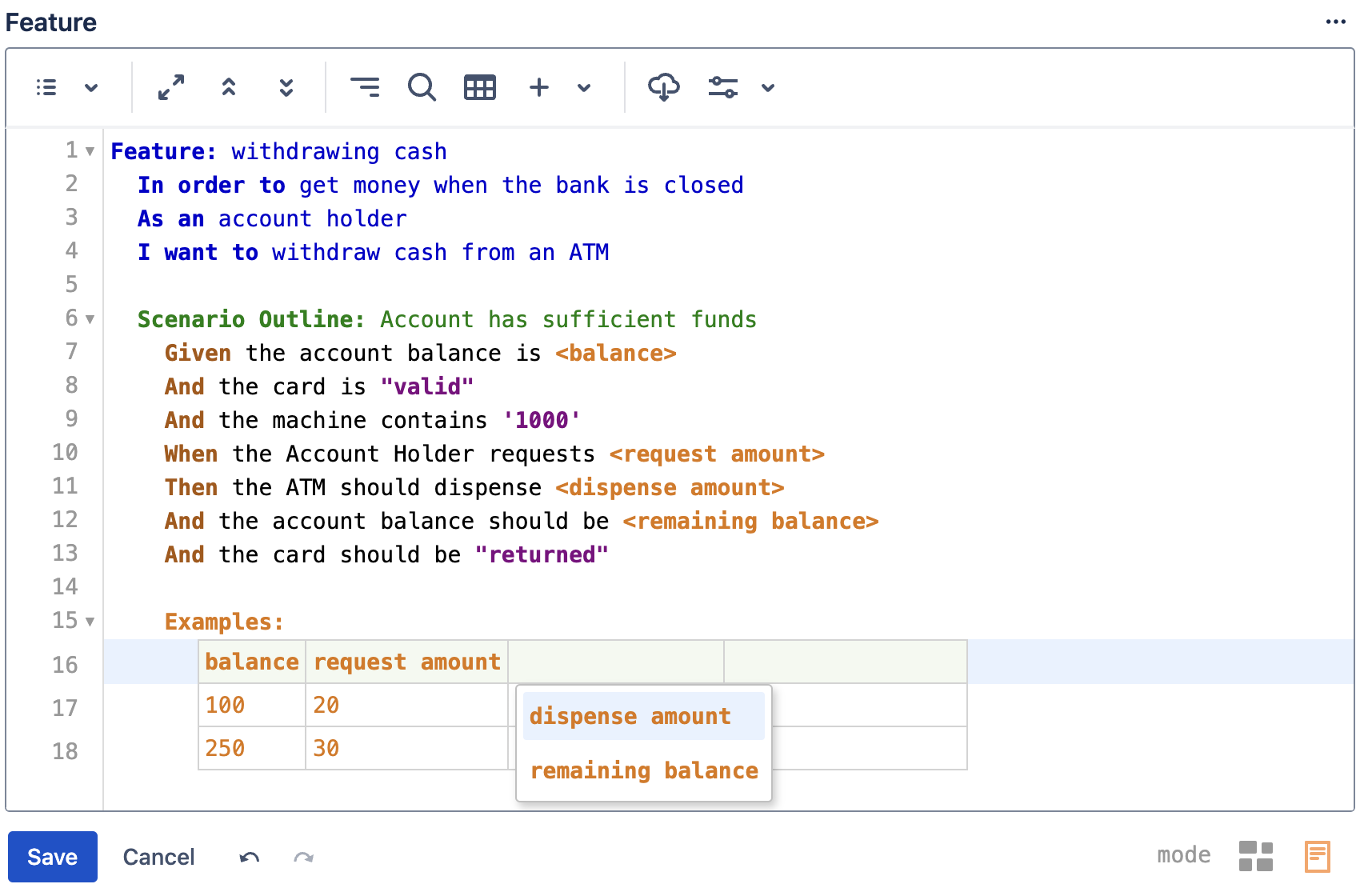
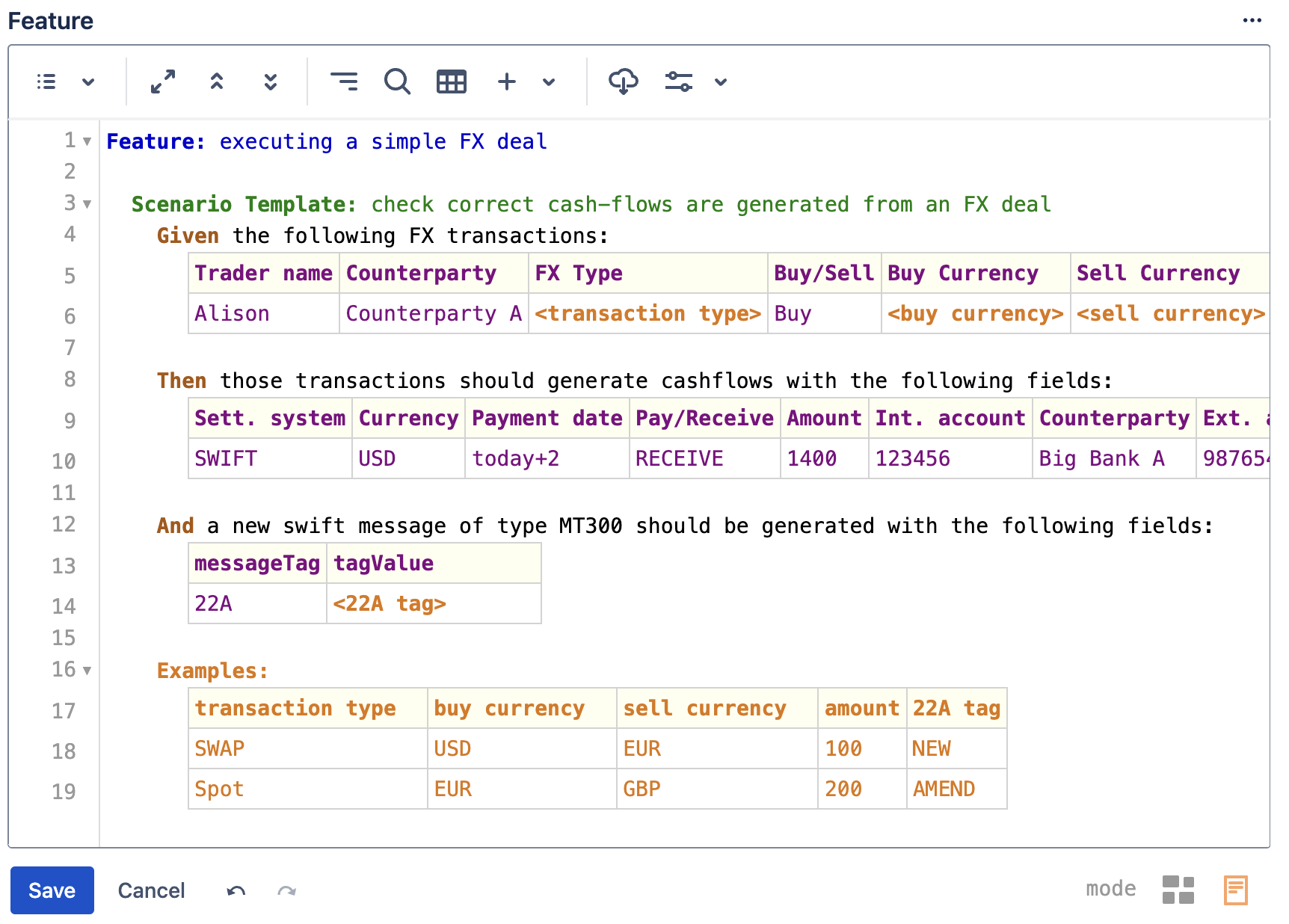
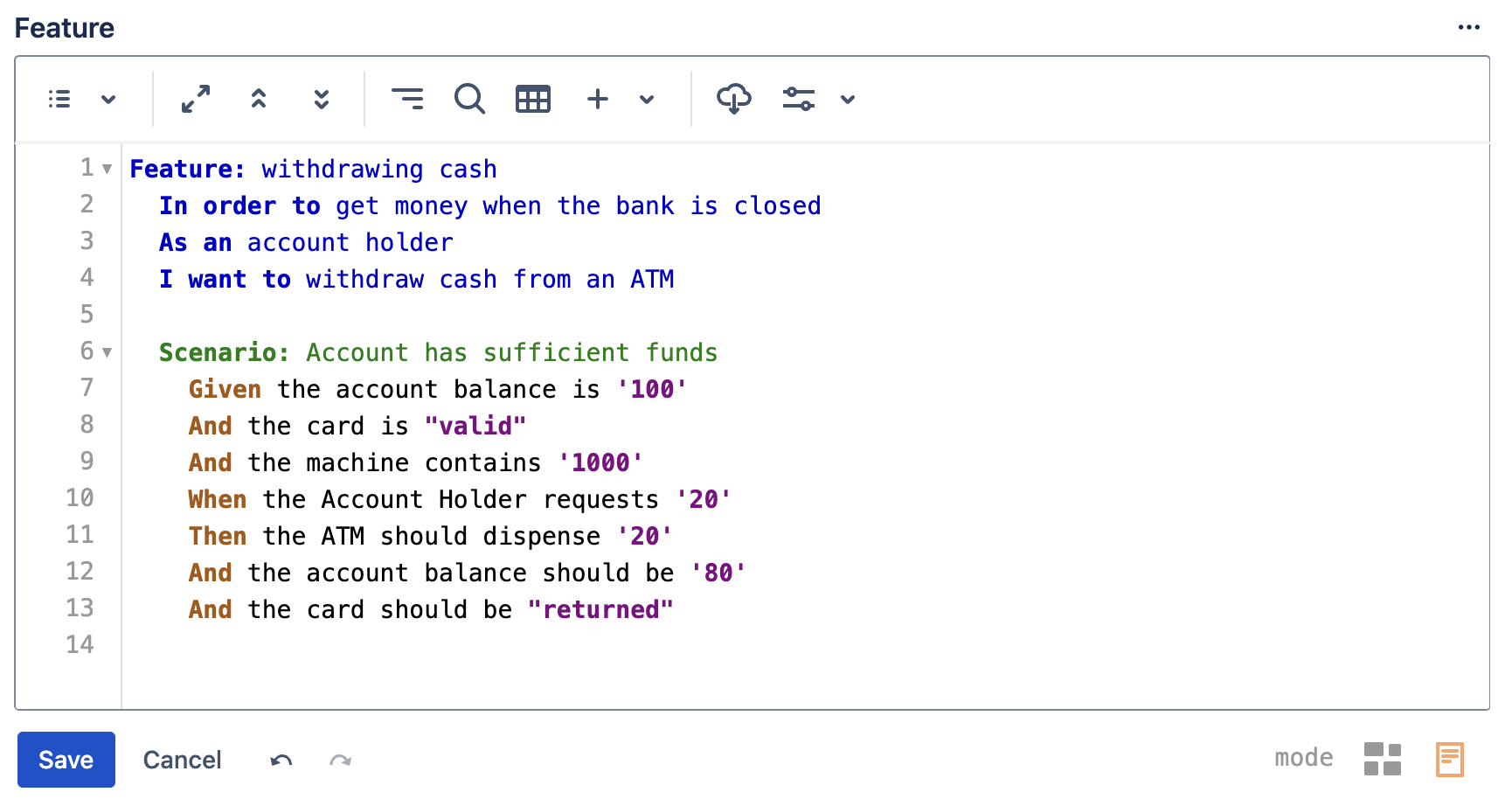
All Gherkin keywords are highlighted using colour and bold font
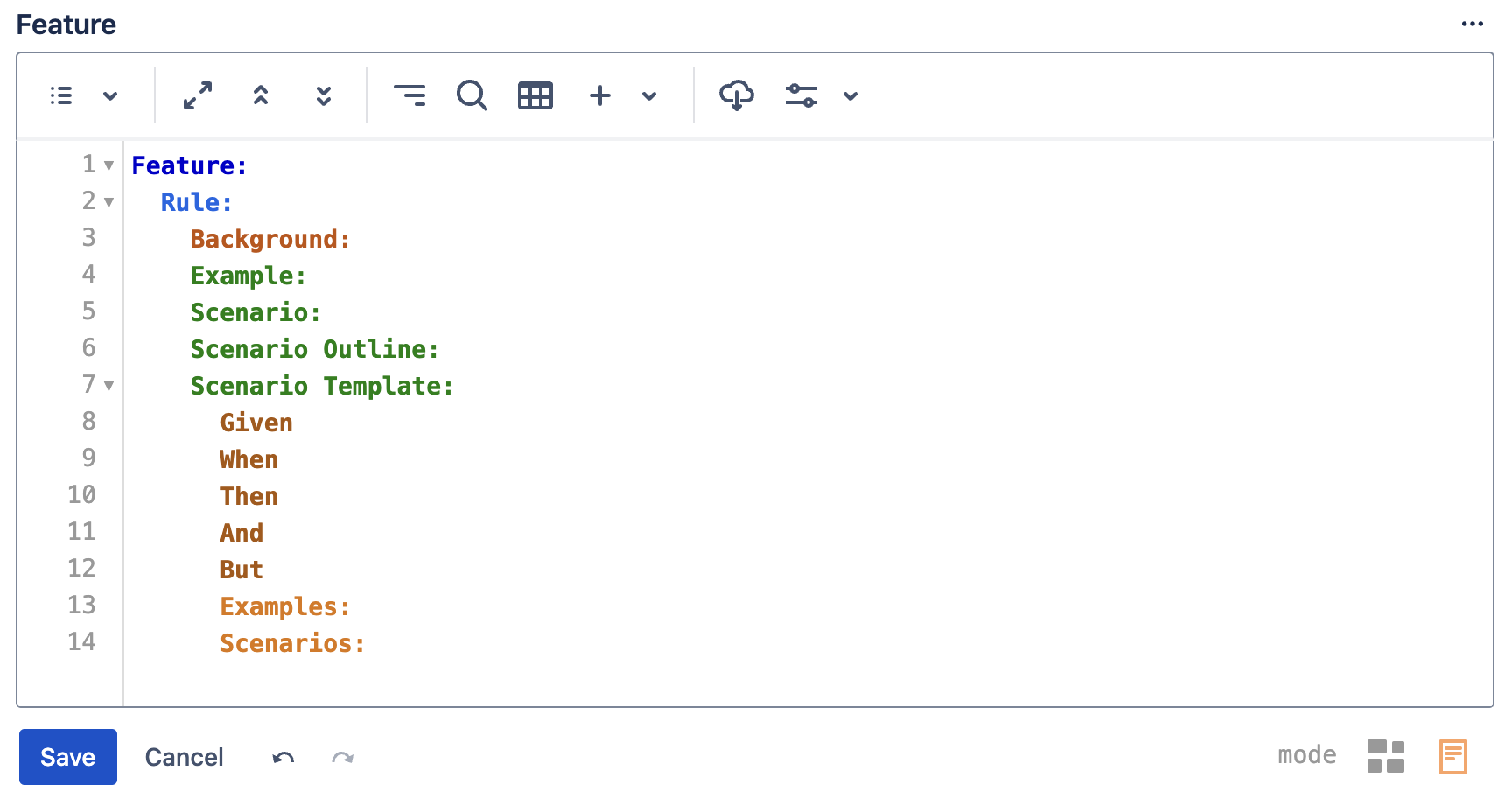
No '*'
Note that using * (asterisk character) as a step keyword is not supported as it does not improve readability of the examples
User Story Keywords
The commonly used set of user story keywords (As a, I want to, So that) can be entered in the Feature title section like below:
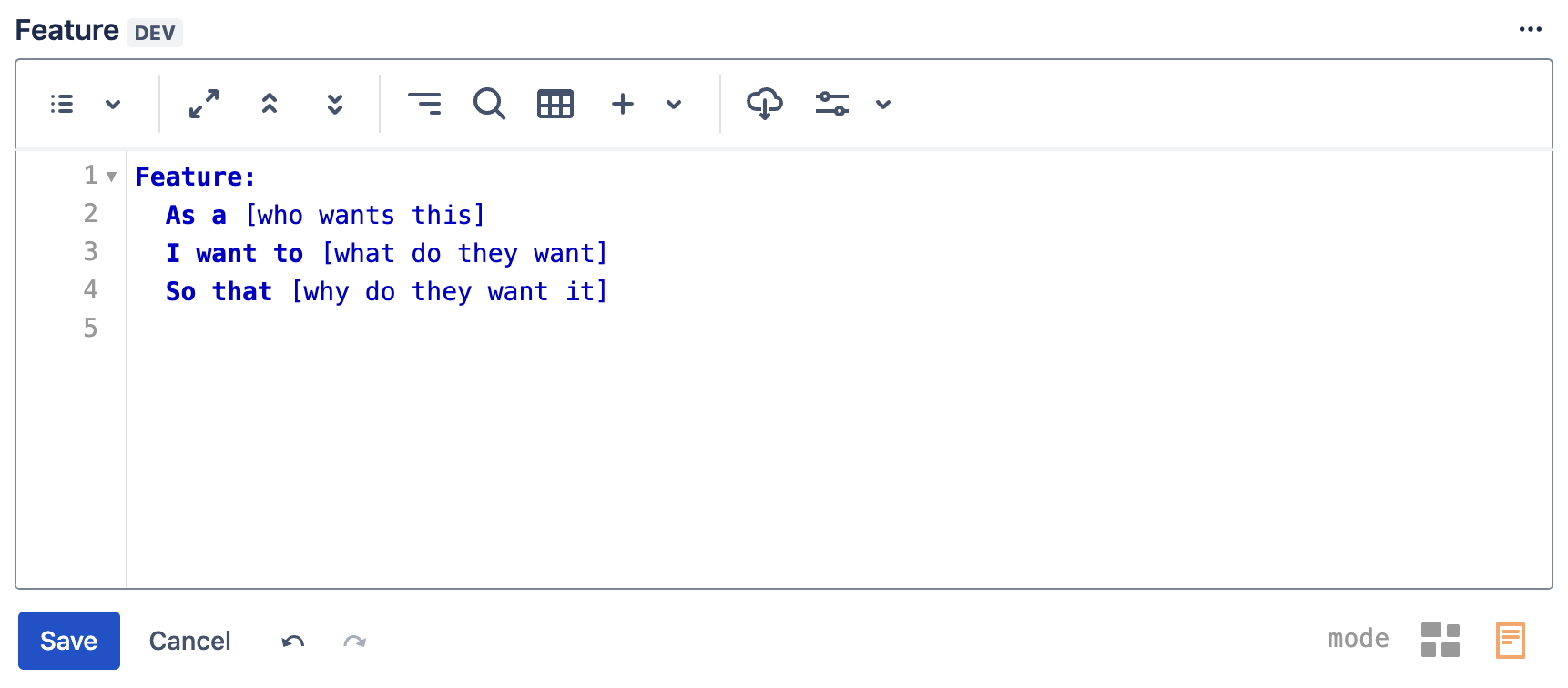

User story keywords don’t need to be at the start of the line and you can use either lower or upper case as needed

The 'to’ part in the “I want to“ keyword can be omitted and in the “As a” keyword you can enter either “As a“ or “As an”

Simple Step Parameters
Simple parameters (those that are on the same line as the step keyword) can be highlighted by simply wrapping them in single or double quotes
Scenario Outline Parameters
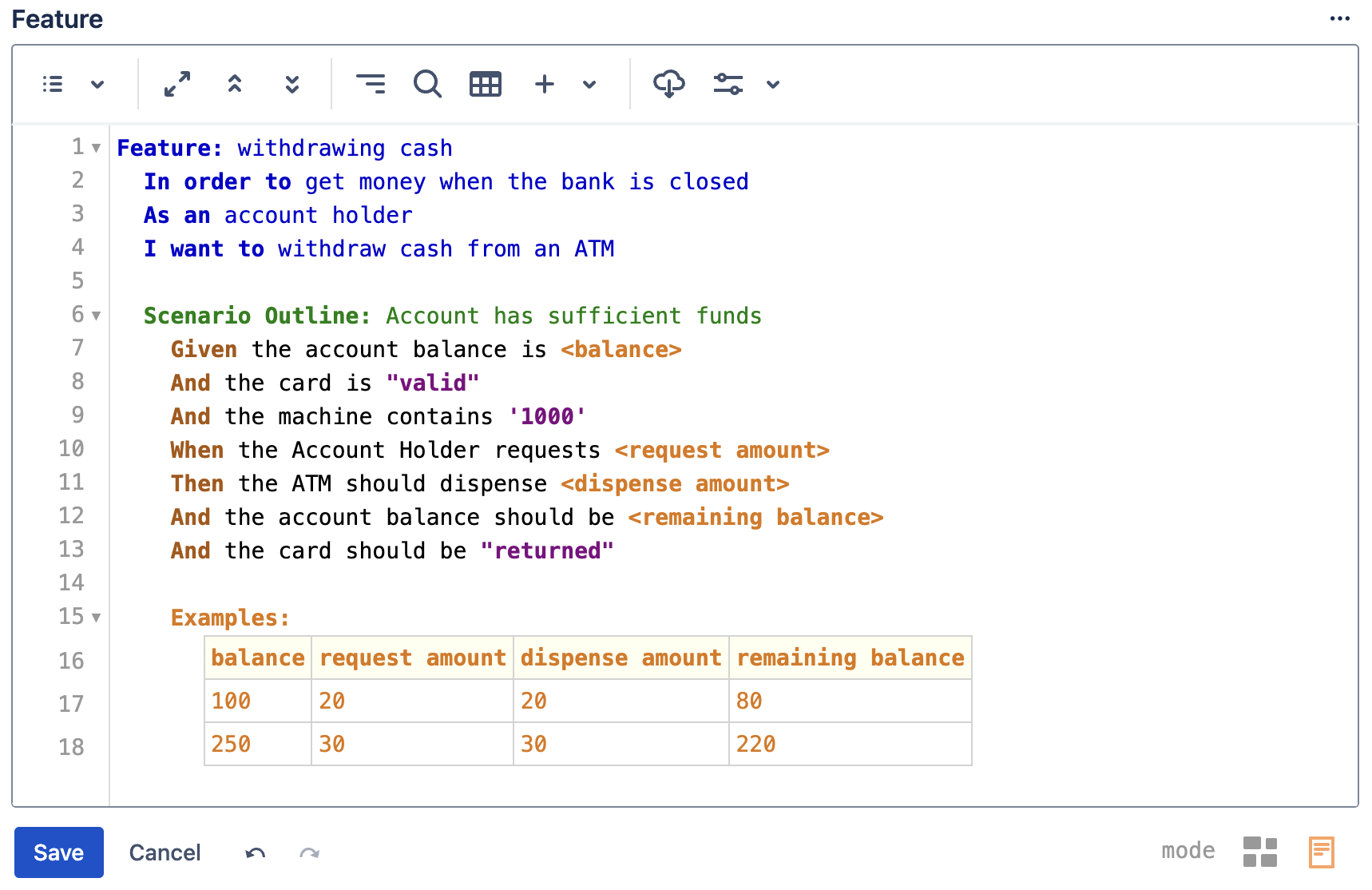
<> delimited step parameters which are used as part of Scenario Template or Scenario Outline are highlighted automatically in orange
Use autocomplete
Use autocompletion support to quickly populate Examples table header section with the names of the parameters that you have used in parameterized steps above. Simply press 'Ctrl+Space' to bring up the auto completion menu